
No more outsourcing to a Clipping Path Provider. The Auto Path Plugin offers a one click option for creating instant clipping paths. This plugin offers an option for streamlining your workflow with the help of AI. Clipping does not have to be a long process. This plugin will evolve with the help of AI over time. With this plugin you have your choice of a path being created either 0px, 1 px or 2 px or 3px in on the edge so you can isolate the subject with a path.
-
Automated Clipping Path Creation: Auto Path utilizes AI to generate precise clipping paths, significantly reducing the time spent on manual path creation.
Here are the 4-6 key takeaways from the Auto Path Plugin:
🎯 Key Takeaways
- Automated Clipping Path Creation: The Auto Path Plugin uses AI to generate precise clipping paths, reducing the time spent on manual path creation.
- Efficiency: The plugin saves time, allowing users to complete tasks in seconds that previously took hours, especially when working with product images on solid backgrounds.
- High Accuracy: The plugin performs best with well-lit images and consistent backgrounds, minimizing the need for manual adjustments.
- Customizable Path Options: The plugin offers options for creating paths with 0px, 1px, 2px, or 3px offset, allowing for flexible isolation of subjects.
- Time and Cost Savings: The plugin eliminates the need to outsource to a clipping path provider, saving users time and money.
- Scalability: The plugin can be supercharged with an add-on to automate thousands of files with one click, making it a scalable solution for large workflows.
-
Efficiency: Users have reported completing tasks in seconds that previously took hours, especially when working with product images on solid backgrounds. This plugin saves time and you will not need to outsource to a clipping path provider.
-
High Accuracy: The plugin performs best with well-lit images and consistent backgrounds, minimizing the need for manual adjustments.
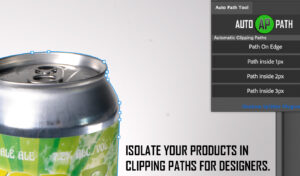
Get more information at the official Adobe Marketplace.
https://exchange.adobe.com/apps/cc/cec9a1eb/auto-path
Also check out the addon to supercharge the plugin that can automate thousands of files with one click.
https://shadowsplitter.com/product/auto-path-plugin-turbo-add-on/
How to Use the Auto Path Plugin – Step by Step
Step 1: Install the Auto Path Plugin
To get started with the Auto Path Plugin, visit the official Adobe Marketplace at https://exchange.adobe.com/apps/cc/cec9a1eb/auto-path and download the plugin. Follow the installation instructions provided to install the plugin on your device.
Step 2: Launch the Plugin and Select an Image
After installing the plugin, launch it and select the image you want to create a clipping path for. The plugin works best with well-lit images and consistent backgrounds, so choose an image that meets these criteria for optimal results.
Step 3: Choose the Path Size
The Auto Path Plugin allows you to choose the size of the path, ranging from 0px to 3px. Select the size that best suits your needs to isolate the subject with a path. This option gives you flexibility and control over the clipping path creation process.
Step 4: Create the Clipping Path
With the image selected and the path size chosen, click the “Create Clipping Path” button to generate the path. The plugin utilizes AI to create a precise clipping path, significantly reducing the time spent on manual path creation.
Step 5: Review and Refine the Clipping Path (Optional)
Review the generated clipping path to ensure it meets your requirements. If necessary, make manual adjustments to refine the path. However, the plugin’s high accuracy minimizes the need for manual adjustments, especially when working with well-lit images and consistent backgrounds.
Step 6: Consider the Turbo Add-on for Bulk Processing
If you need to automate thousands of files with one click, consider purchasing the Turbo Add-on for the Auto Path Plugin. This add-on can significantly streamline your workflow and save time. Visit https://shadowsplitter.com/product/auto-path-plugin-turbo-add-on/ to learn more about the Turbo Add-on.
Step 7: Take Advantage of AI-Powered Efficiency
The Auto Path Plugin is designed to evolve with the help of AI over time, ensuring that you have access to the latest technology and features. Take advantage of the plugin’s efficiency and accuracy to streamline your workflow and complete tasks in seconds that previously took hours.
People Also Ask
What is the Auto Path Plugin and how does it work?
The Auto Path Plugin is a tool that utilizes AI to generate precise clipping paths, significantly reducing the time spent on manual path creation. It offers a one-click option for creating instant clipping paths and can be used to isolate subjects with a path. This plugin is designed to streamline workflow and increase efficiency.
How accurate is the Auto Path Plugin and what types of images does it work best with?
The Auto Path Plugin performs best with well-lit images and consistent backgrounds, minimizing the need for manual adjustments. It can achieve high accuracy, especially when working with product images on solid backgrounds. However, the quality of the output may vary depending on the quality of the input image.
Can the Auto Path Plugin be used to automate clipping paths for multiple files at once?
While the basic Auto Path Plugin does not support batch processing, there is an add-on available called the Auto Path Plugin Turbo Add-on that can automate thousands of files with one click. This add-on is designed to supercharge the plugin and increase productivity.
Where can I download the Auto Path Plugin and what are the system requirements?
The Auto Path Plugin is available for download on the official Adobe Marketplace. To get more information and download the plugin, visit the Adobe Marketplace website. The system requirements for the plugin are not specified, but it is likely compatible with Adobe Creative Cloud applications such as Photoshop.
How does the Auto Path Plugin save time and reduce outsourcing costs?
The Auto Path Plugin saves time by automating the clipping path creation process, which can significantly reduce the time spent on manual path creation. By using this plugin, users can complete tasks in seconds that previously took hours, eliminating the need to outsource to a clipping path provider and reducing costs.
Frequently Asked Questions
Q: What is the Auto Path Plugin and how does it work?
The Auto Path Plugin is a smart AI plugin for Photoshop that offers a one-click option for creating instant clipping paths. It utilizes AI to generate precise clipping paths, significantly reducing the time spent on manual path creation.
Q: Can I choose the size of the path created by the Auto Path Plugin?
Yes, with the Auto Path Plugin, you have the option to choose the size of the path being created, either 0px, 1px, 2px, or 3px from the edge, allowing you to isolate the subject with a path.
Q: How accurate is the Auto Path Plugin?
The Auto Path Plugin performs best with well-lit images and consistent backgrounds, minimizing the need for manual adjustments. It has been reported to complete tasks in seconds that previously took hours, especially when working with product images on solid backgrounds.
Q: Do I need to outsource to a clipping path provider if I use the Auto Path Plugin?
No, the Auto Path Plugin saves time and eliminates the need to outsource to a clipping path provider, allowing you to create instant clipping paths with the help of AI.
Q: Where can I find more information about the Auto Path Plugin and its add-ons?
You can find more information about the Auto Path Plugin at the official Adobe Marketplace. Additionally, you can check out the Turbo Add-on to supercharge the plugin and automate thousands of files with one click at https://shadowsplitter.com/product/auto-path-plugin-turbo-add-on/.
Q: Will the Auto Path Plugin improve over time?
Yes, the Auto Path Plugin will evolve with the help of AI over time, providing more accurate and efficient clipping path creation.